Model Compression
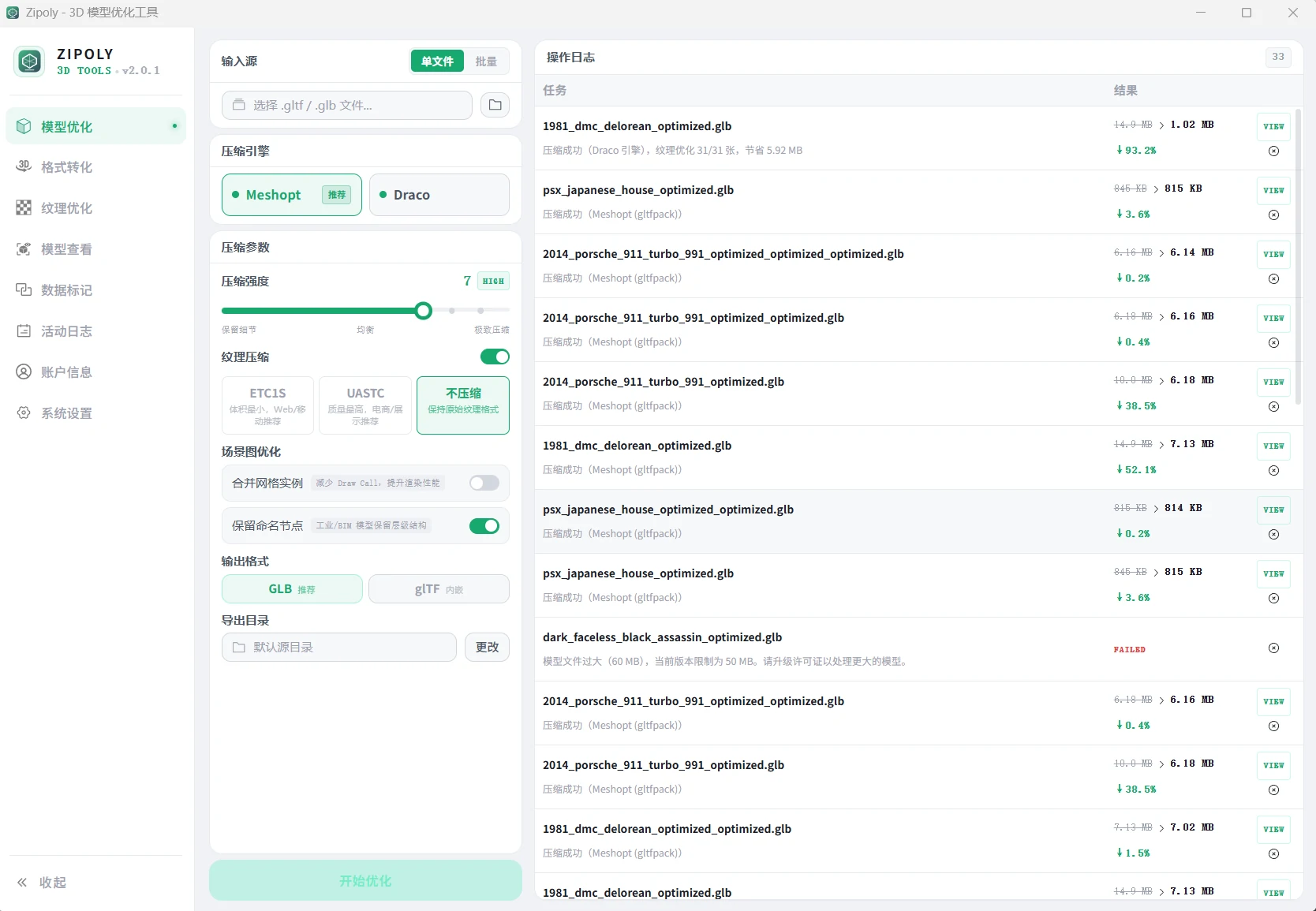
This is the default page when you open the app. It supports both single-file and batch modes.
Compression Workflow
① Import the model — click "Choose File" or drag & drop a .glb / .gltf file
After import, Zipoly automatically shows model statistics and a health check (duplicate vertices, oversized textures, missing normals, etc.), along with suggested compression parameters.
glTF / GLB input only
Compression accepts only .glb and .gltf files. Other formats such as FBX or OBJ must first be converted to GLB via Format Conversion.
② Choose the engine
| Draco | Meshopt (recommended) | |
|---|---|---|
| Compression ratio | High | Higher |
| Load speed | Fast | Faster (WebGPU-friendly) |
| Texture compression | JPEG / WebP / KTX2 | BasisU (ETC1S / UASTC) |
| Framework support | Native in Three.js / Babylon.js / model-viewer | Three.js only (decoder required) |
| Best for | Legacy projects, broad compatibility | New projects, maximum performance |
Not sure which one? Choose Meshopt
If Meshopt is unavailable, Zipoly automatically falls back to Draco with a notice — processing never stalls.
Meshopt loading limitations
Models compressed with Meshopt cannot be loaded directly by Babylon.js or model-viewer — only Three.js (r136+) is supported. If your project uses either of those frameworks, choose the Draco engine instead.
③ Set the compression level
Default is 7, suitable for most scenarios.
| Level | Use case |
|---|---|
| 1–3 | Engineering / medical models, precision first |
| 4–6 | Product showcases, architectural visualization |
| 7 (default) | General Web3D — the best starting point |
| 8–9 | Mobile, low bandwidth; minor artifacts acceptable |
| 10 | Distant decoration; visible geometric distortion |
Higher is not always better
Level 10 can shift vertex positions and deform surfaces, producing visible "jaggies" or broken faces. Start with 7, and only step down if you see issues — don't start at the maximum.
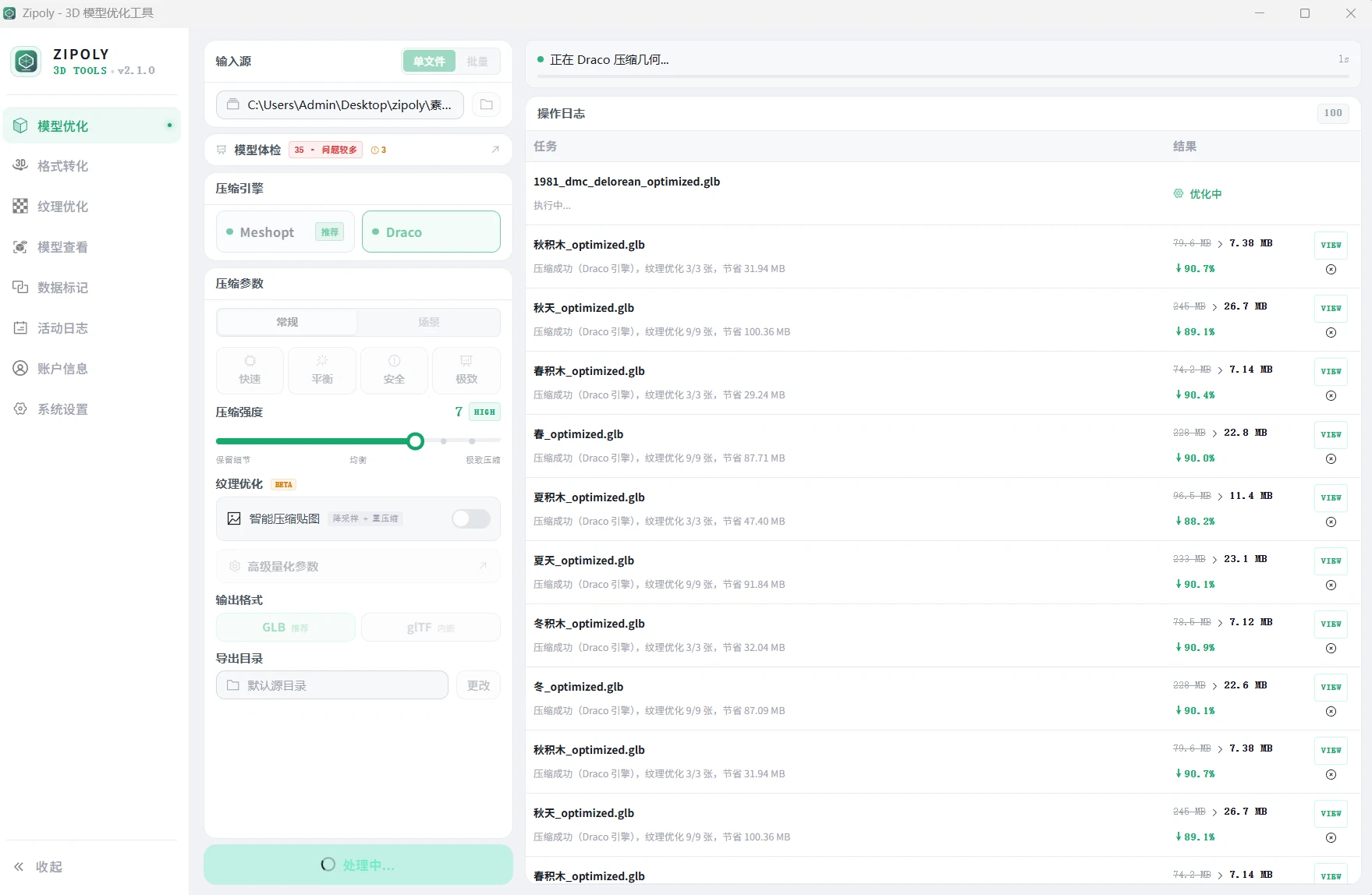
④ Start compression — click "Start Optimize"; progress is shown live on the right
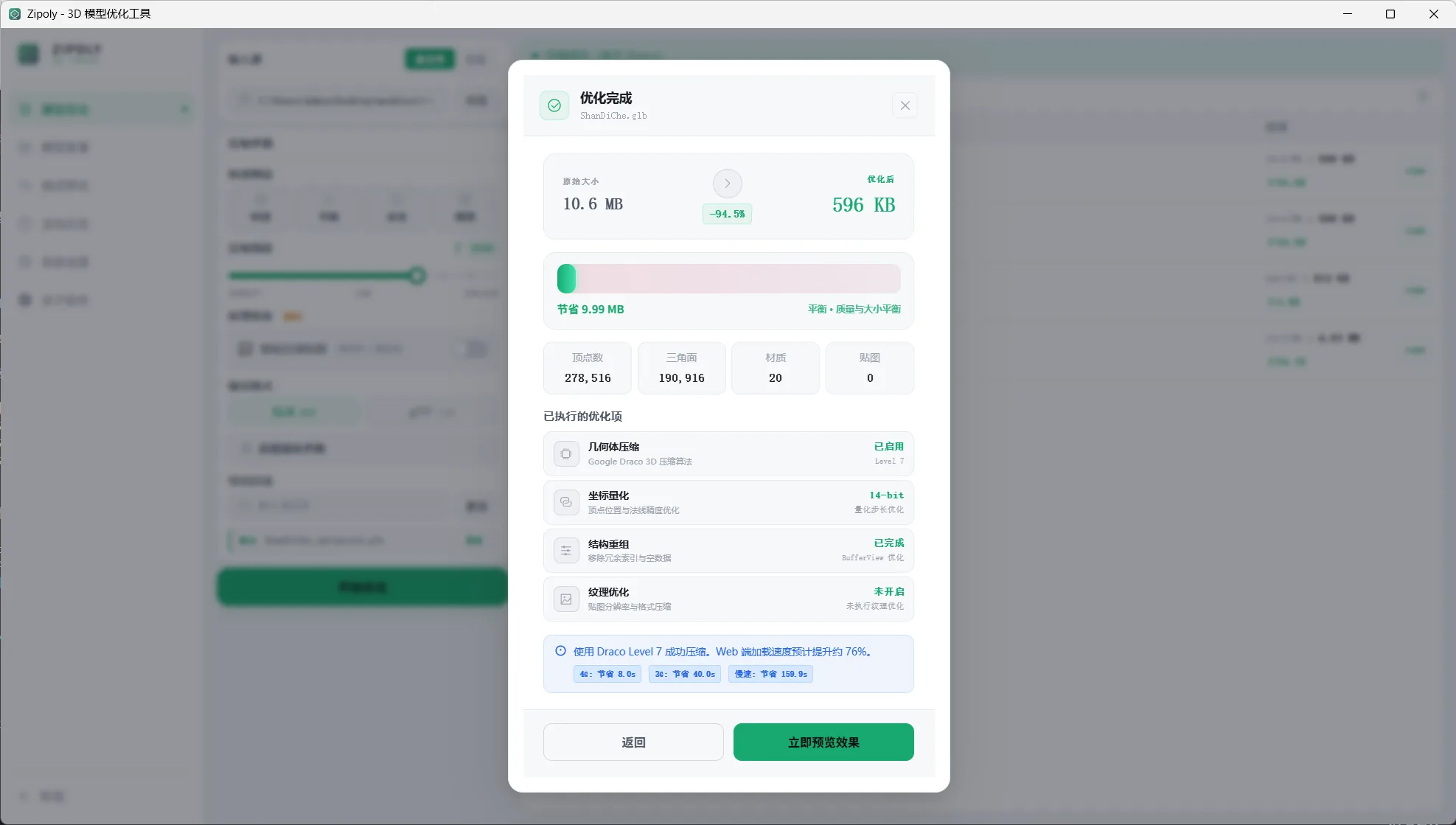
⑤ Review the result — after compression, check the comparison window. We recommend clicking "Preview" every time to verify the visuals, since unsuitable parameters are best caught by eye.
Batch Compression
Enable "Batch Mode" → pick a folder → start. Zipoly recursively scans all .glb / .gltf files in subfolders and supports pause / resume / cancel.
Texture settings in batch mode
Batch mode shares the same parameters as single-file mode, including engine, compression level and texture settings. Confirm the parameters before starting a batch run.
Texture Settings
Click the "Texture Settings" button to configure texture processing.
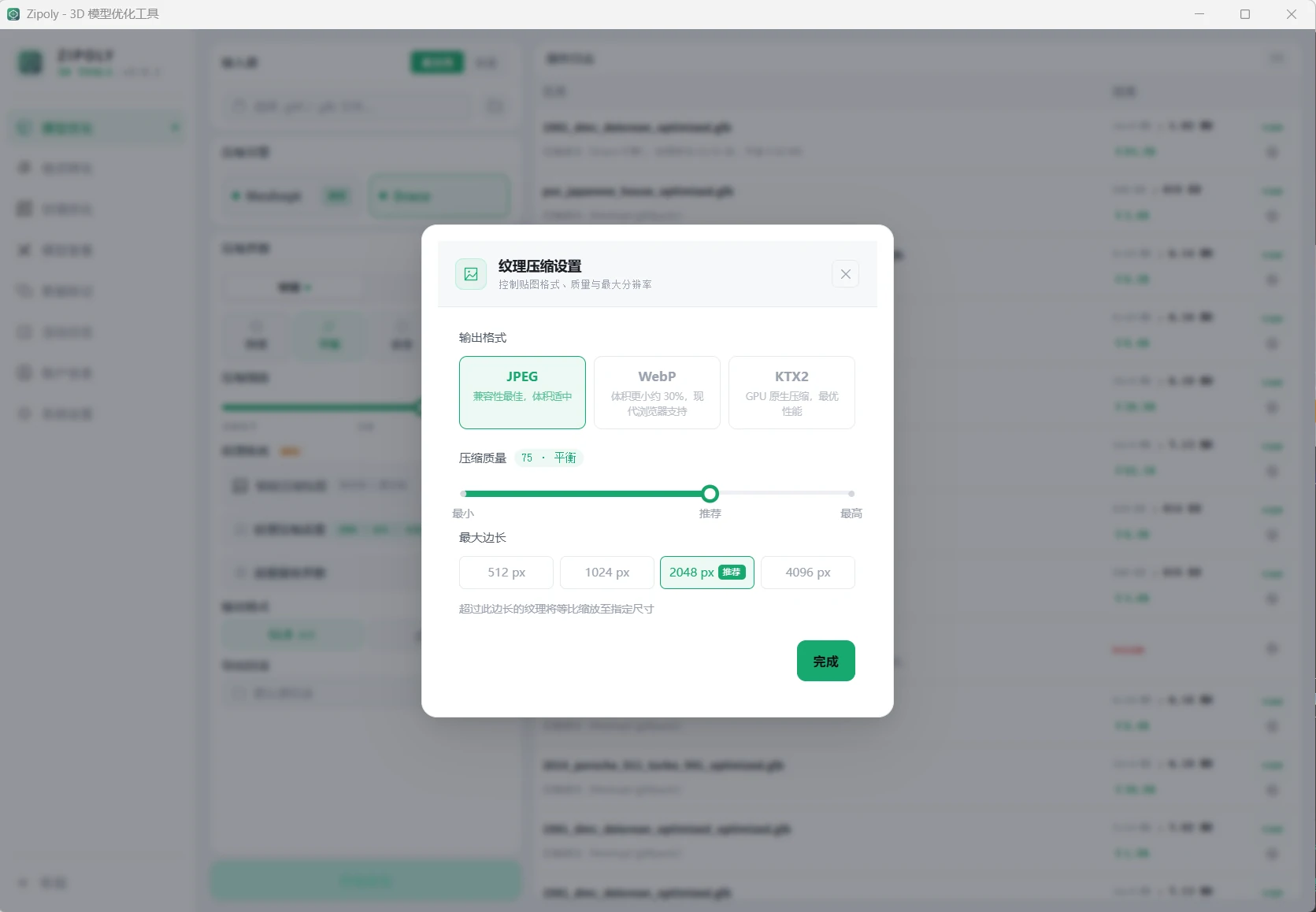
Draco engine: JPEG (best compatibility) / WebP (30% smaller) / KTX2 (GPU-native, best performance)
Meshopt engine: BasisU built-in — pick ETC1S (small size) or UASTC (high quality)
ETC1S for color maps, UASTC for normal/specular maps
ETC1S compresses more aggressively with some loss; UASTC is near-lossless but larger — ideal for detail-critical textures like normal maps and specular maps.
Texture optimization only applies to GLB
If the target format is glTF (textures stored separately), the KTX2 / WebP conversion options under Texture Settings have no effect. Set the target format to GLB when you need texture compression.
Loading Compressed Models in Your Project
Why do I need to configure a loader?
Draco and Meshopt are lossy geometry compression algorithms. Browsers cannot decode them natively — the loader must decode them at runtime. The code below is required.
Draco:
import { GLTFLoader } from 'three/addons/loaders/GLTFLoader.js'
import { DRACOLoader } from 'three/addons/loaders/DRACOLoader.js'

const dracoLoader = new DRACOLoader()
// Recommended: copy the decoder files into your project's public folder (no external CDN dependency)
// cp node_modules/three/examples/jsm/libs/draco public/draco -r
dracoLoader.setDecoderPath('/draco/')

const loader = new GLTFLoader()
loader.setDRACOLoader(dracoLoader)
loader.load('model_optimized.glb', gltf => scene.add(gltf.scene))
Meshopt:
import { GLTFLoader } from 'three/addons/loaders/GLTFLoader.js'
import { MeshoptDecoder } from 'three/addons/libs/meshopt_decoder.module.js'

const loader = new GLTFLoader()
loader.setMeshoptDecoder(MeshoptDecoder)
loader.load('model_optimized.glb', gltf => scene.add(gltf.scene))
Meshopt + KTX2 textures (configure both):
import { GLTFLoader } from 'three/addons/loaders/GLTFLoader.js'
import { MeshoptDecoder } from 'three/addons/libs/meshopt_decoder.module.js'
import { KTX2Loader } from 'three/addons/loaders/KTX2Loader.js'

// renderer is your THREE.WebGLRenderer instance
const ktx2Loader = new KTX2Loader()
// Recommended: copy the transcoder files into your project's public folder (no external CDN dependency)
// cp node_modules/three/examples/jsm/libs/basis public/basis -r
ktx2Loader.setTranscoderPath('/basis/')
ktx2Loader.detectSupport(renderer) // detects the KTX2 sub-formats your GPU supports

const loader = new GLTFLoader()
loader.setMeshoptDecoder(MeshoptDecoder)
loader.setKTX2Loader(ktx2Loader)
loader.load('model_optimized.glb', gltf => scene.add(gltf.scene))
Babylon.js and model-viewer users
Both frameworks have built-in Draco support — no extra configuration, just load the file. However, they do not support Meshopt, so compress with the Draco engine for them.
Advanced Quantization Parameters (Draco only)
Click "Advanced Parameters" to fine-tune precision. Most users can keep the defaults.
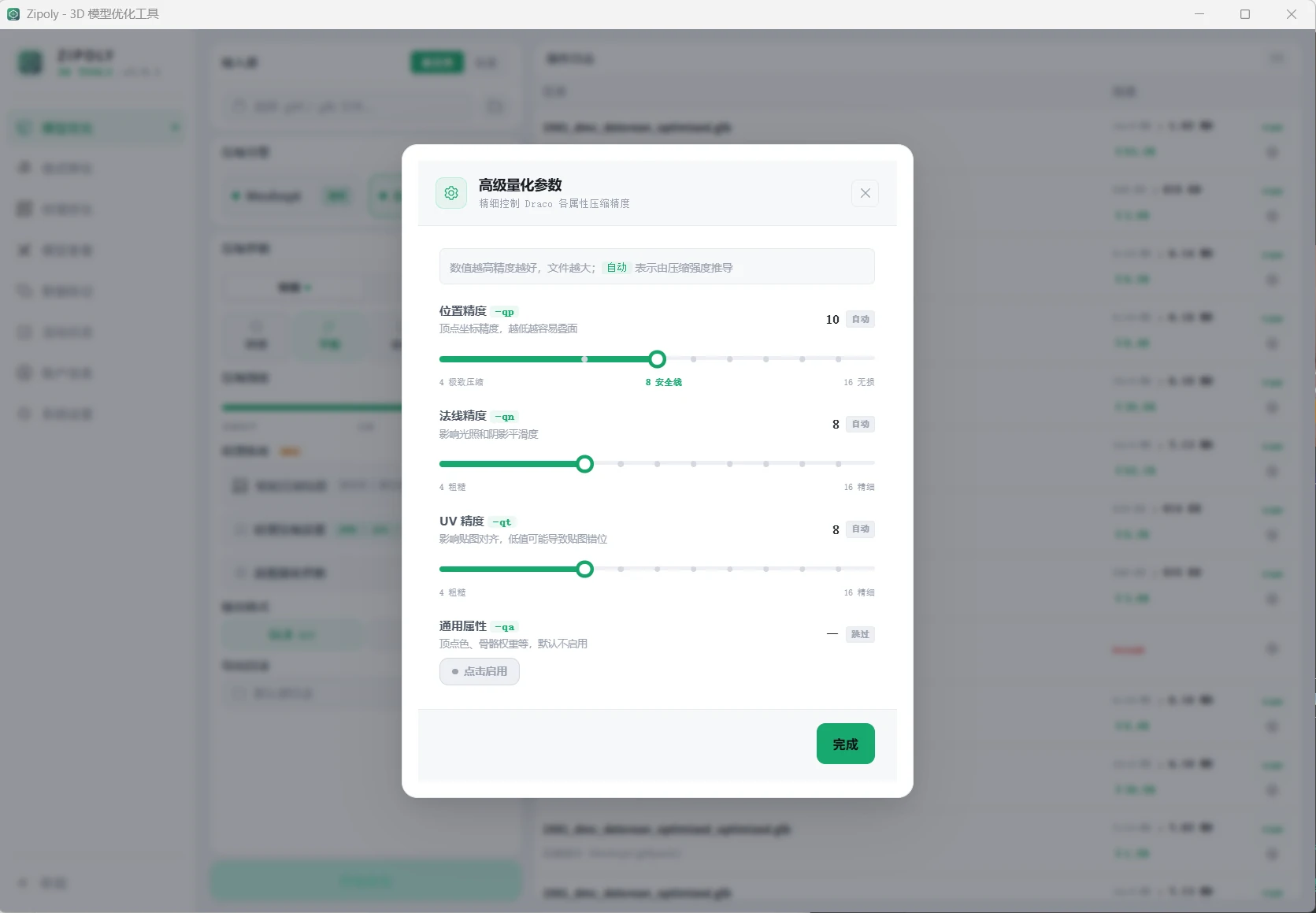
| Parameter | Description | Recommended range |
|---|---|---|
Position precision qp | Vertex coordinate precision — higher means more accurate but larger files | 8–12 |
Normal precision qn | Affects lighting detail | 6–10 |
UV precision qt | Affects texture mapping accuracy | 6–10 |
Quantization vs. compression level
Quantization parameters are independent of the compression level. If the model is still distorted after lowering the compression level, the quantization precision may be too low — increase qp separately.